Quick visual flow
A lightweight visual map of the path described in this guide.
Help Center
Esercizi e tracking
The exercise picker lets you search, filter, and add one or more exercises to the session without breaking the workout flow.
Help Center
Fast answers for training, setup, recovery, and common issues.
Wiki index
Top-level categories and guides arranged like a lightweight tree so the help center is easier to scan.
On this page
6 sections
A lightweight visual map of the path described in this guide.
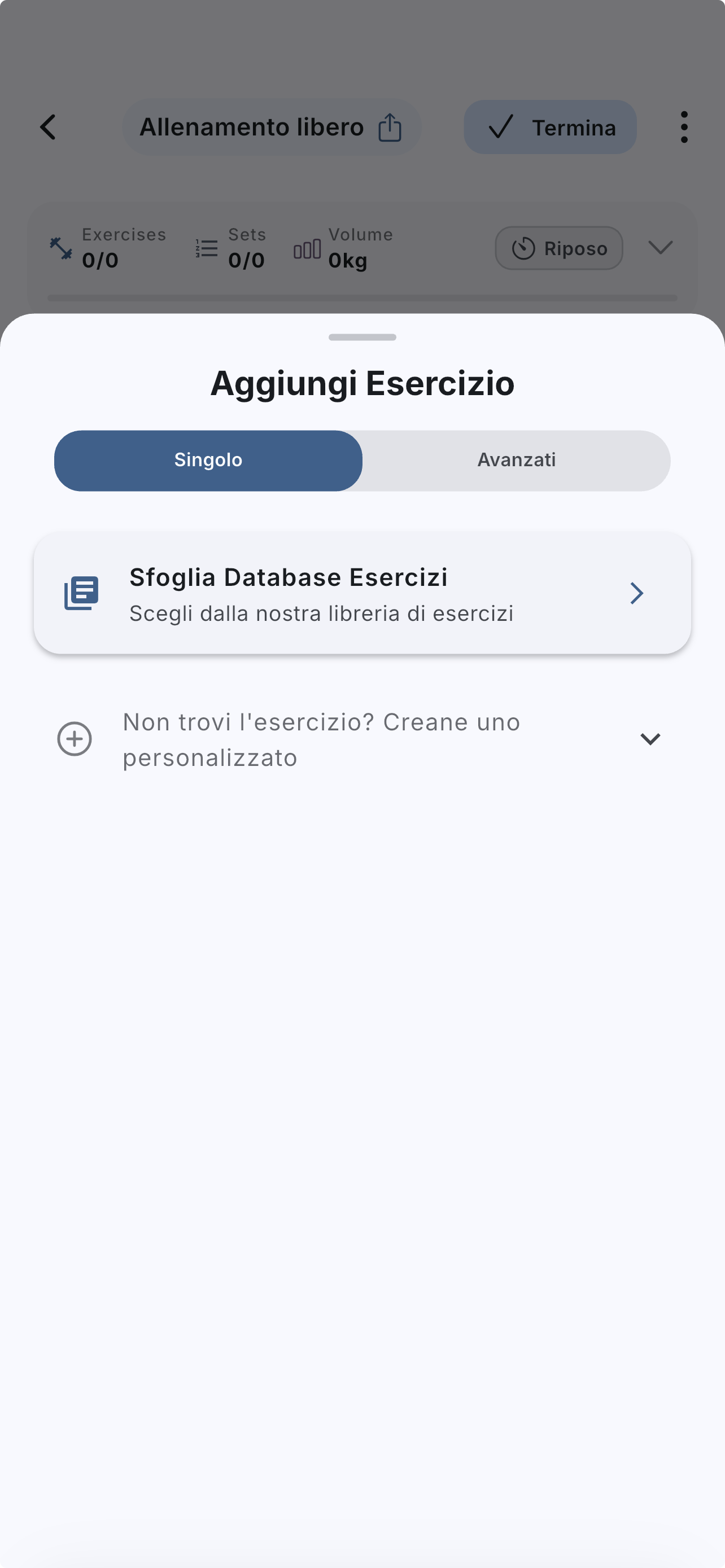
During a workout, tap the `+` button to open exercise selection.
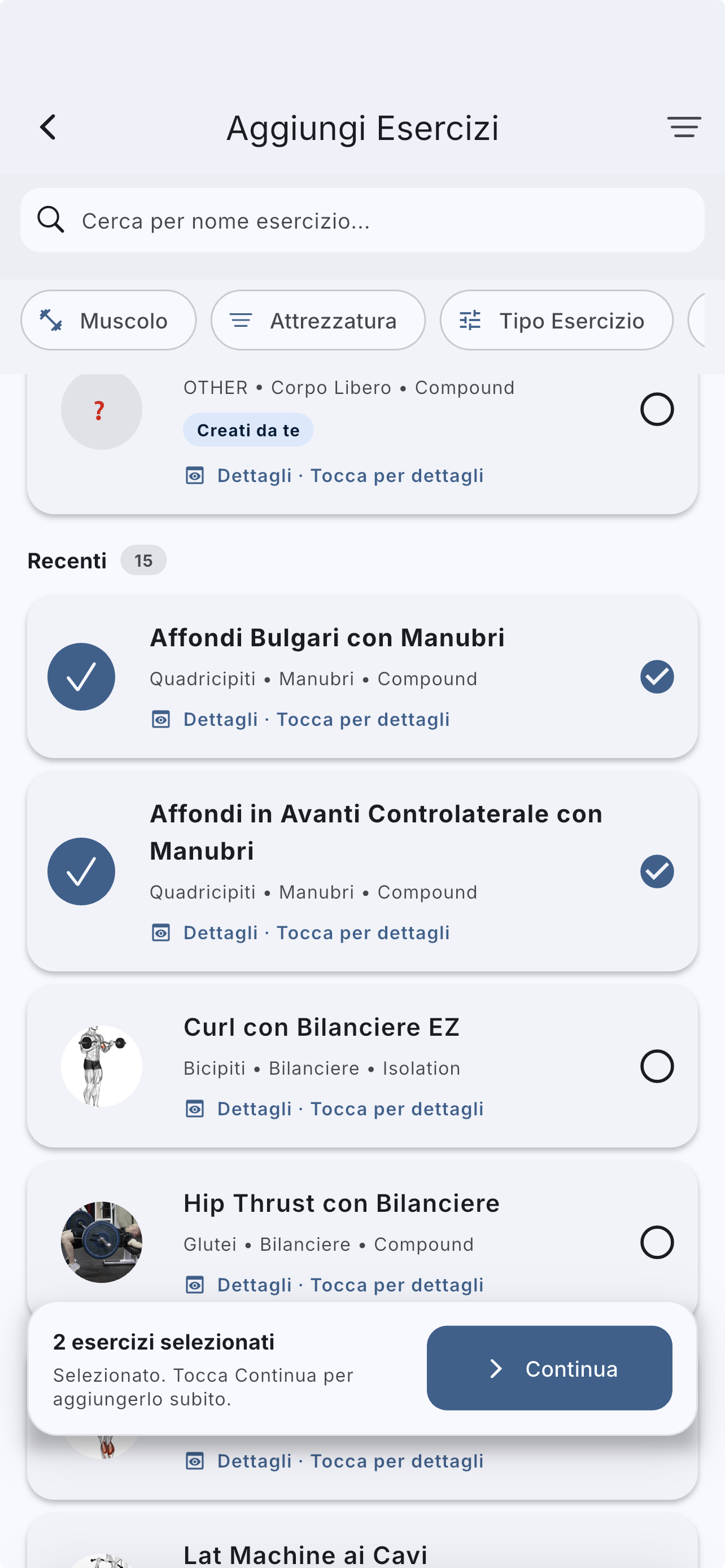
Search by exercise name or use filters, recents, and quick sections.
Read the visual cards: media preview, main muscle, equipment, and exercise type are visible before you open details.
If search does not show the right match, use the personal-create CTA below the search bar.
Select one or more exercises from the list.
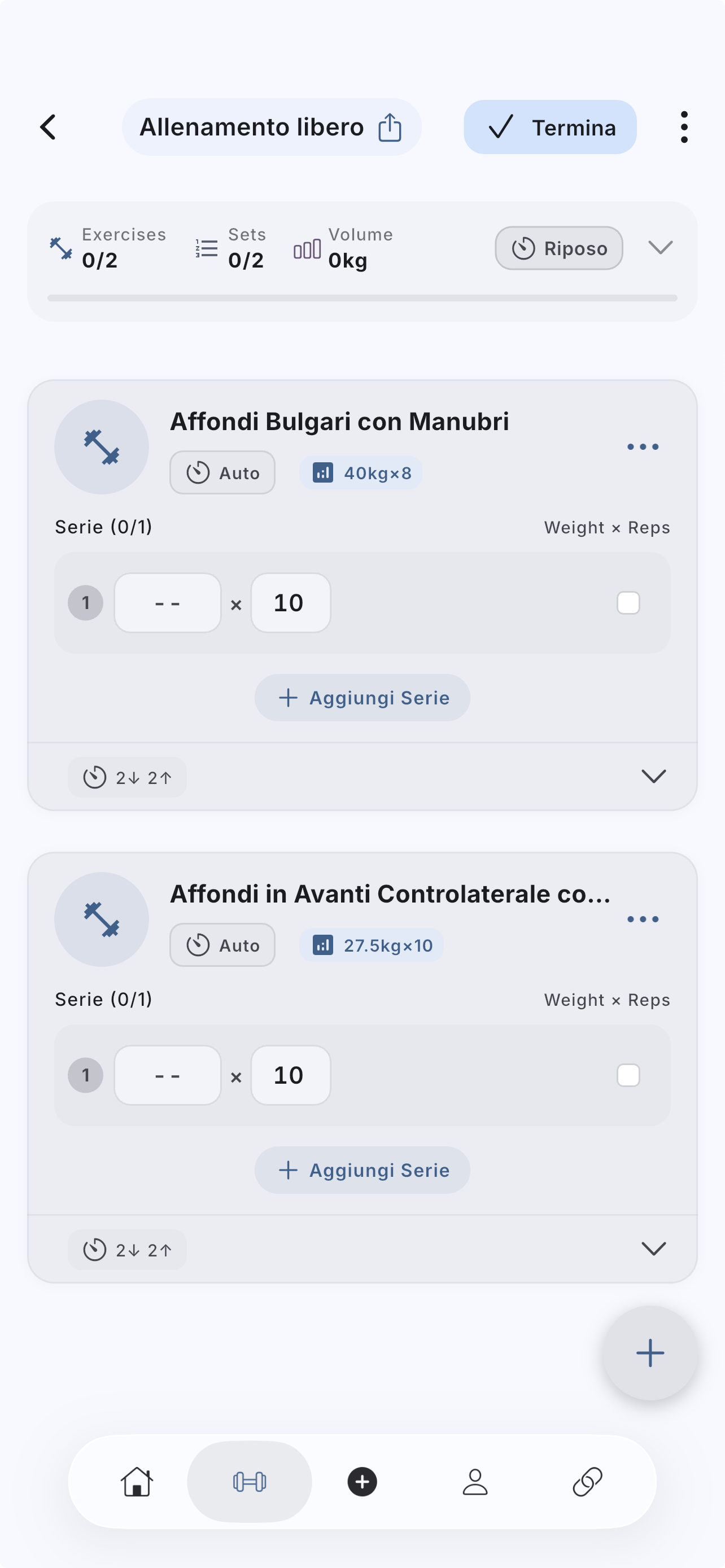
Confirm the addition and return to the active workout.
Check order and structure before you start logging sets.
If the answer is not here, contact support with device, platform, a clear problem description, and ideally a screenshot.
Your feedback helps us improve guides for all users.
Useful follow-up reads that complete the same flow without sending you into internal documentation.
The real in-app flow: start from the simplified Home, use `Free Workout` or a template, add exercises, and finish without polluting history or analytics.
Search by name, alias, or equipment, check filters and your gym profile, then create a personal exercise only when the catalog truly is not enough.
When part of the routine is not relevant that day, you can skip it without blocking the next exercise and without polluting history or analytics.