Quick visual flow
A lightweight visual map of the path described in this guide.
Help Center
Workout e template
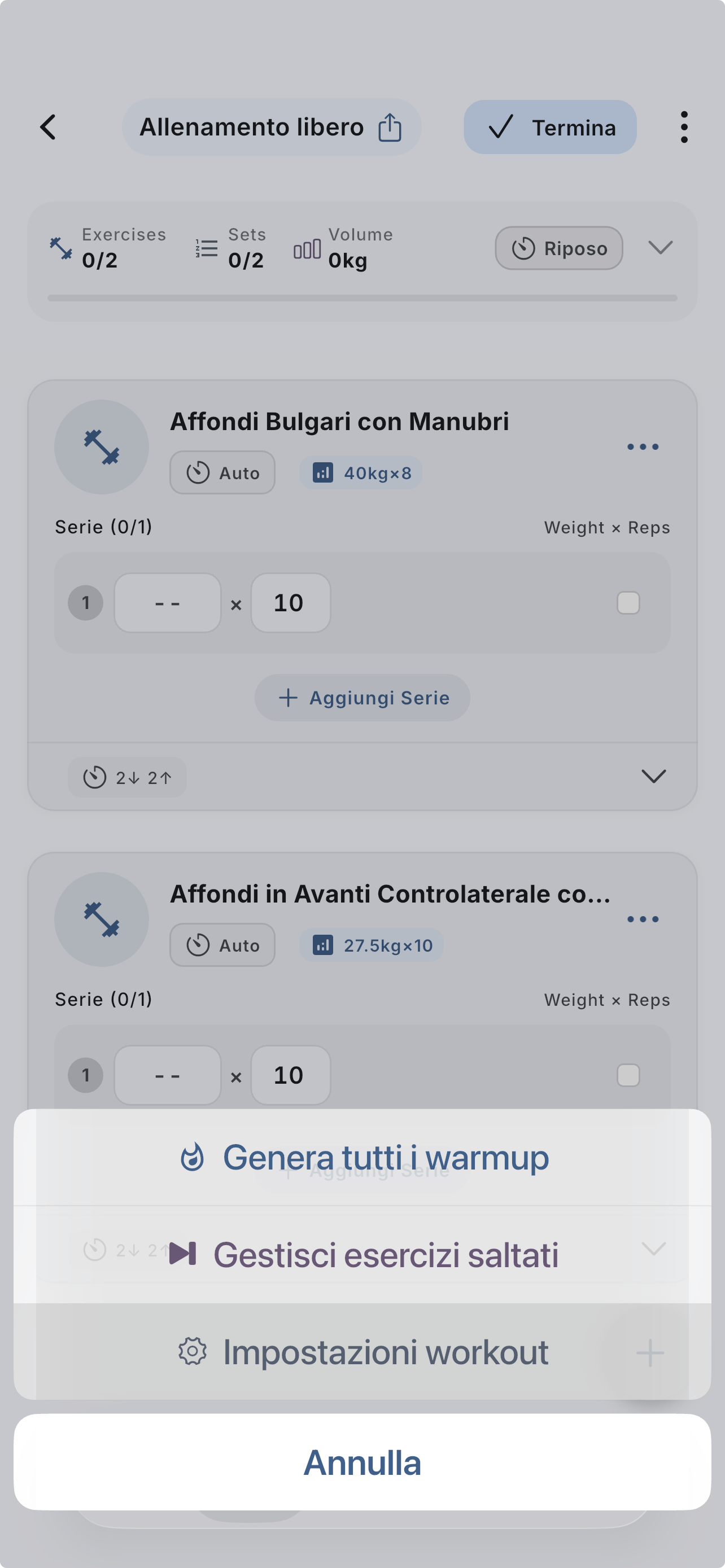
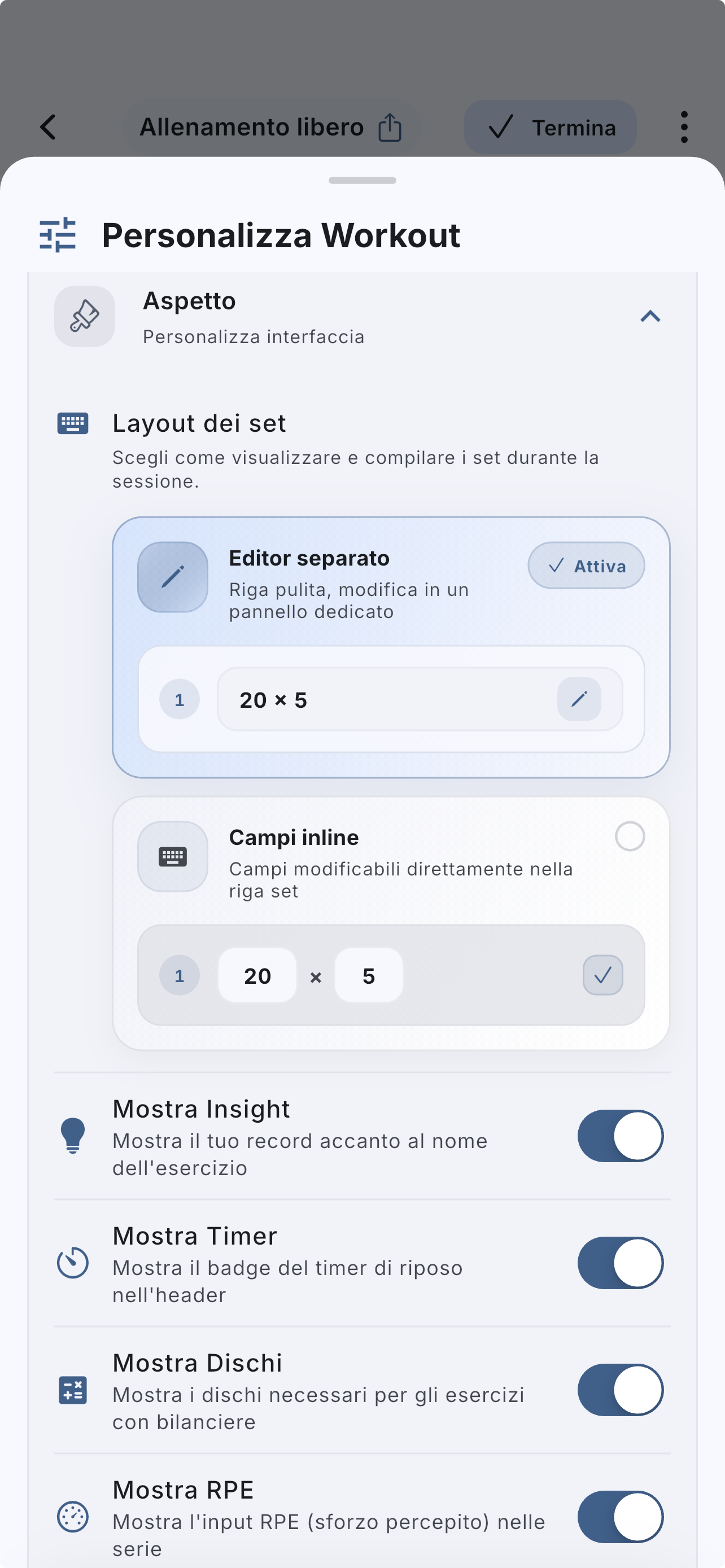
Appearance, automatic timer behavior, and advanced tracking change the pace of a session. Set them once and keep logging consistent.
Help Center
Fast answers for training, setup, recovery, and common issues.
Wiki index
Top-level categories and guides arranged like a lightweight tree so the help center is easier to scan.
On this page
6 sections
A lightweight visual map of the path described in this guide.
Open Profile > Settings > Workout.
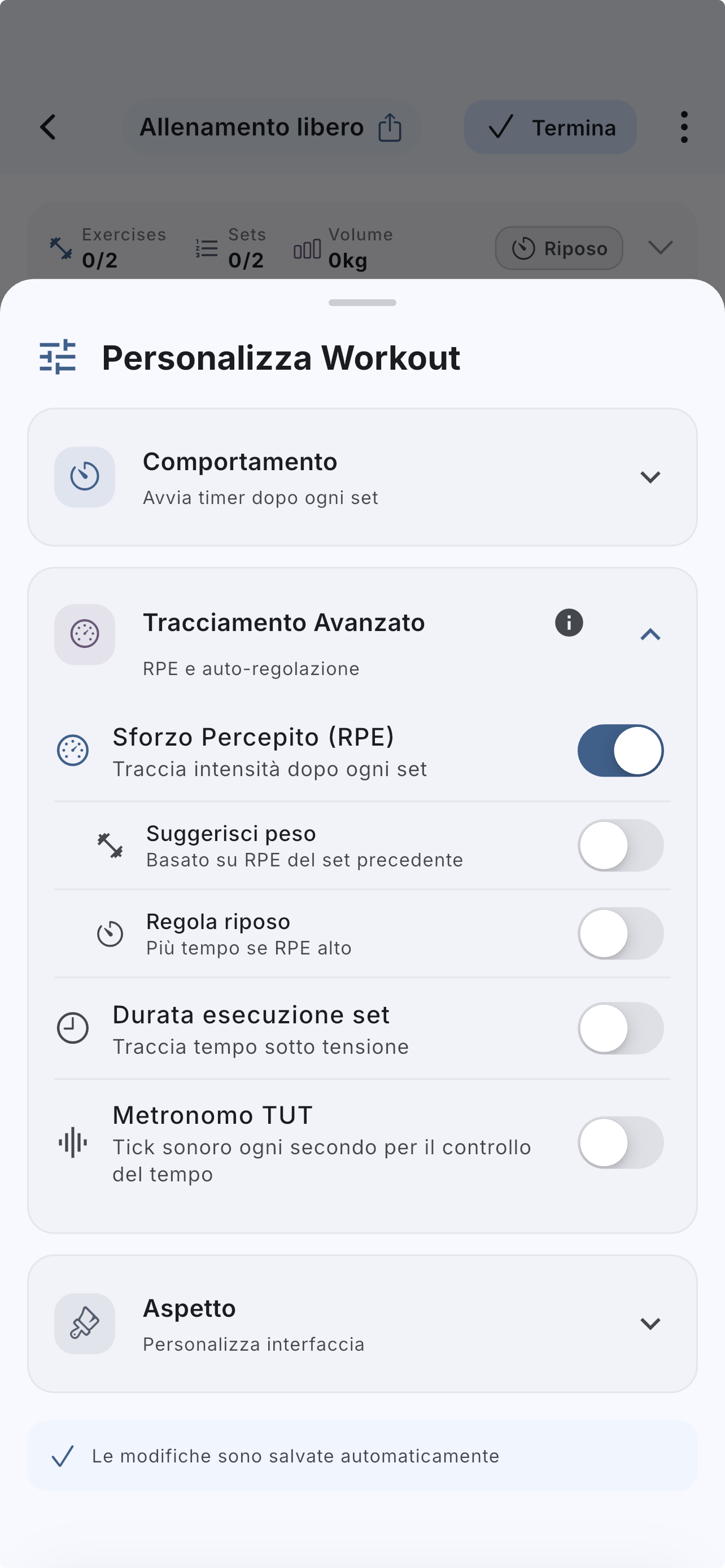
From quick settings, open `Customize workout` to adjust cards, timers, quick presets, and workout behavior.
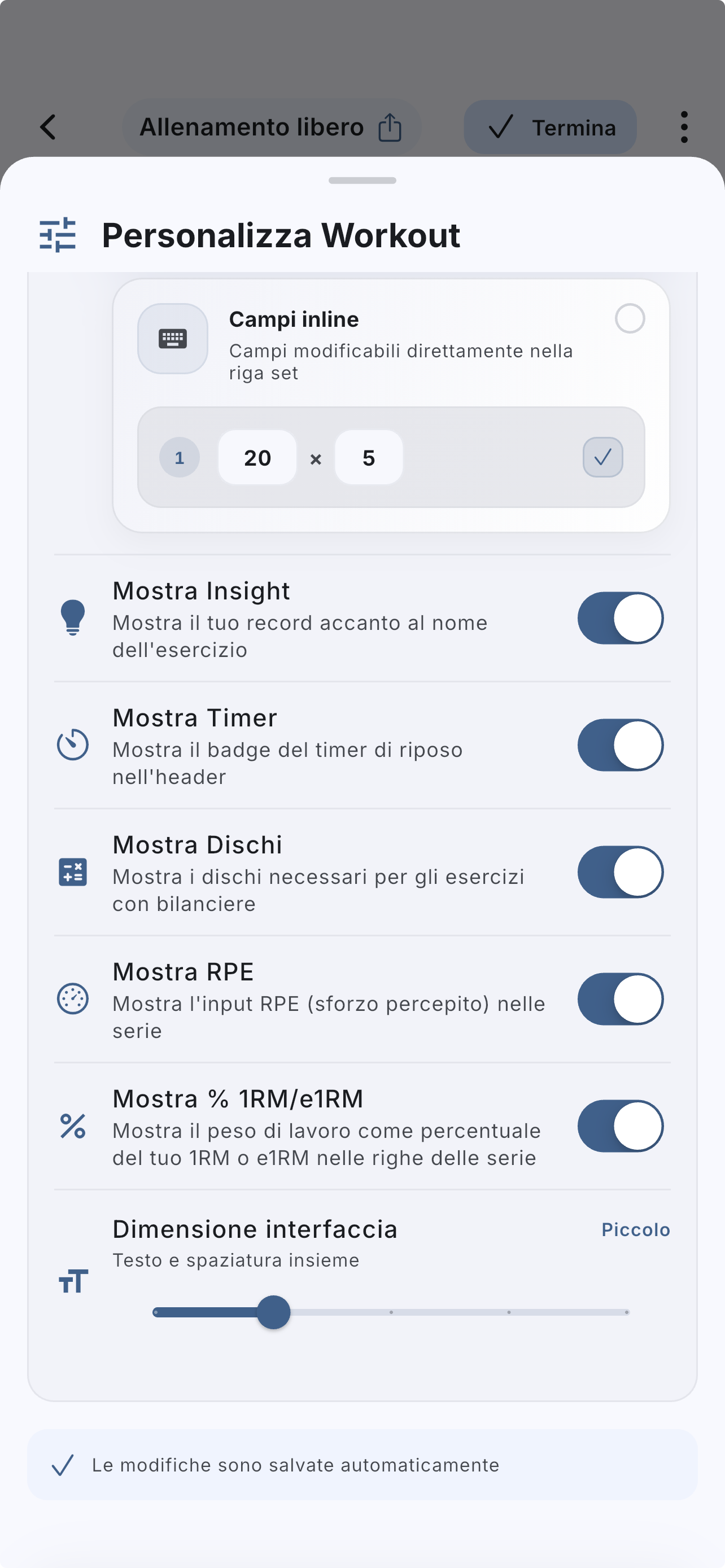
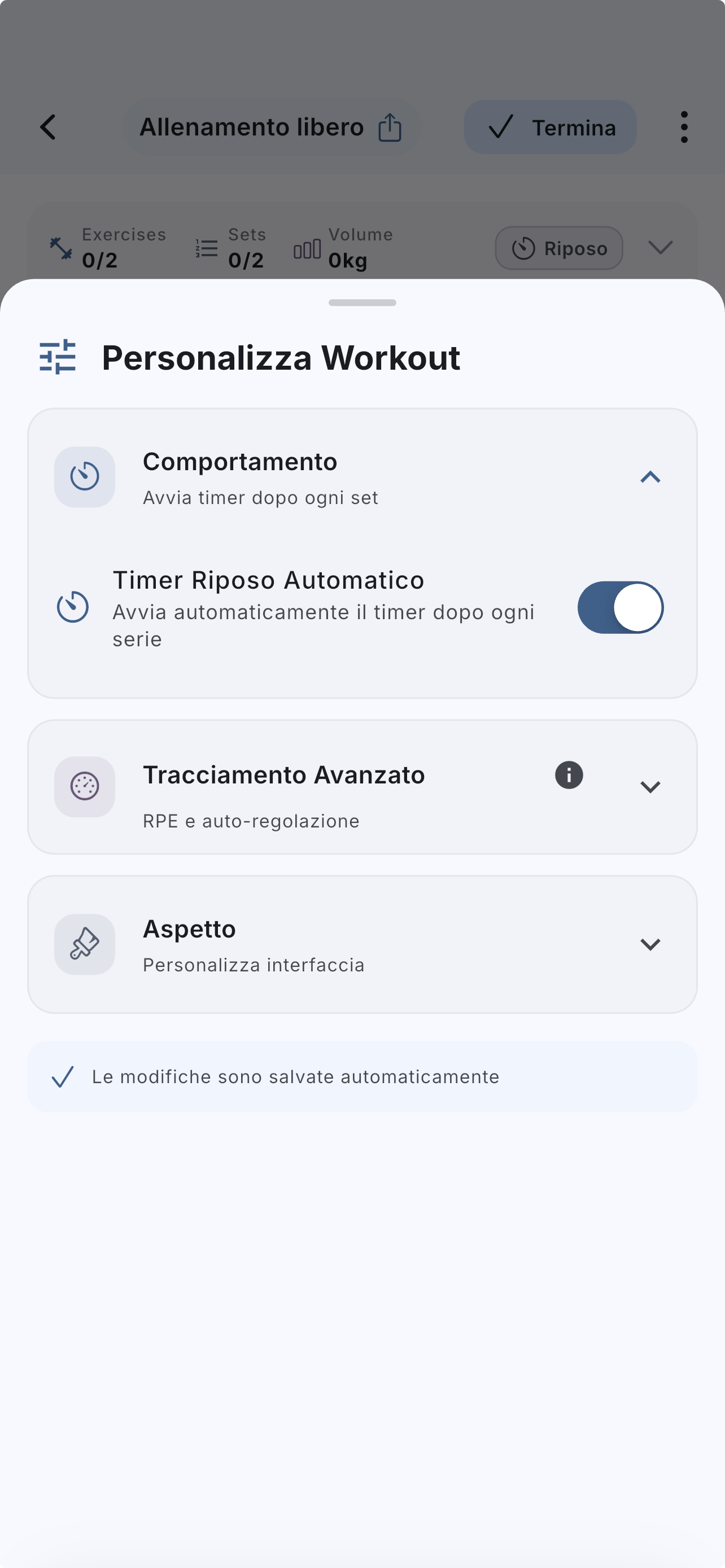
Open `Appearance` to adjust the general text size when needed.
Use `Behavior` to decide when the timer should start automatically.
Open `Advanced tracking` only if you want extra fields such as RPE, notes, or similar details.
If the answer is not here, contact support with device, platform, a clear problem description, and ideally a screenshot.
Your feedback helps us improve guides for all users.
Useful follow-up reads that complete the same flow without sending you into internal documentation.
The real in-app flow: start from the simplified Home, use `Free Workout` or a template, add exercises, and finish without polluting history or analytics.
A useful training log starts with a few well-chosen fields. Use TUT and the metronome when you also want to control rep timing.
Default rest time, final timer sound, water reminders, Live Activities, and Apple Health or Health Connect integration.
Start from a ready-made profile, describe barbells, dumbbells, plates, gym quantity, and rounding, or import a community gym.