Quick visual flow
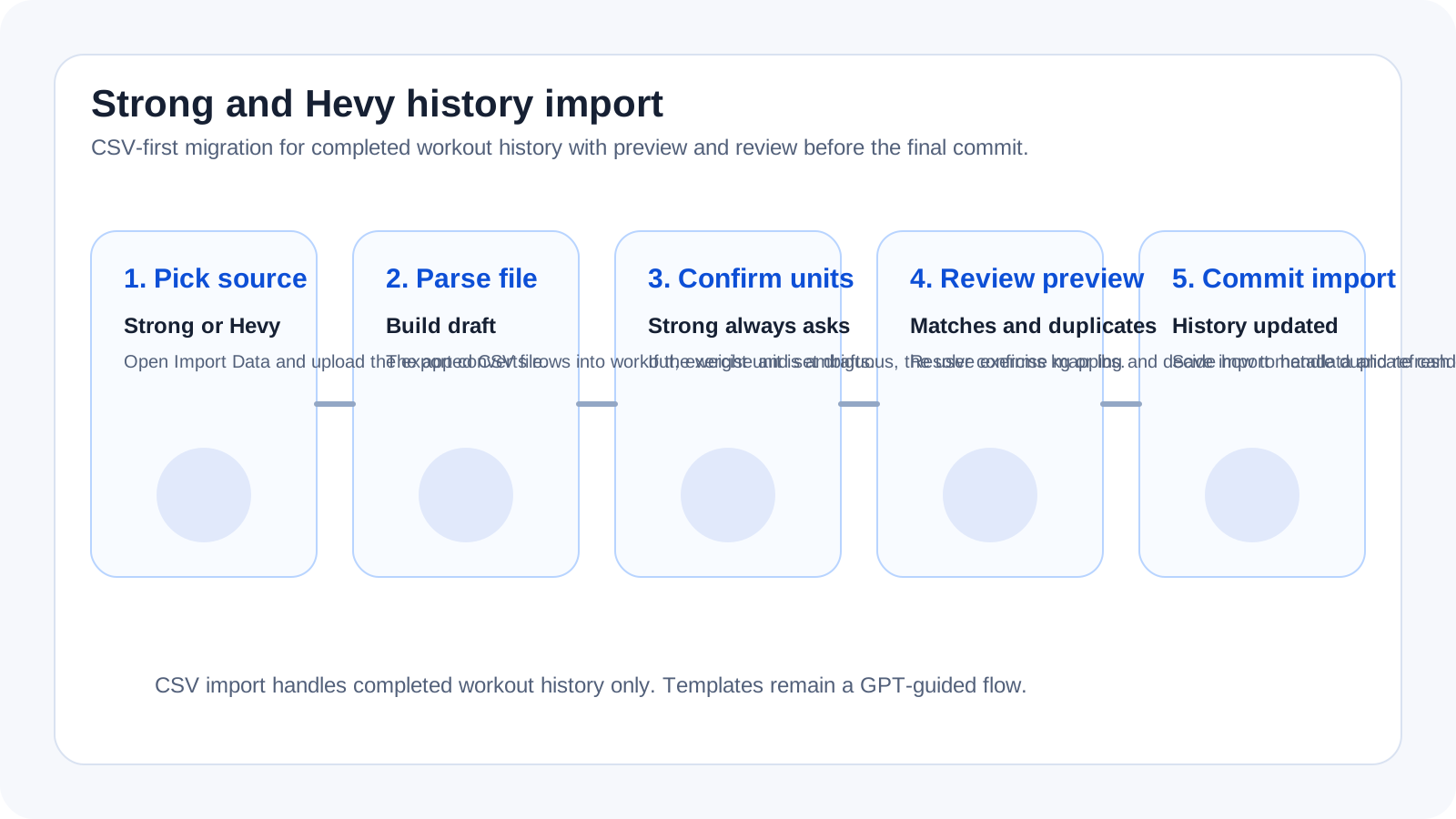
A lightweight visual map of the path described in this guide.
Help Center
Import e FitLogPro GPT
The complete CSV-first guide: file selection, preview, review, duplicates, and final commit into FitLog Pro history.
Help Center
Fast answers for training, setup, recovery, and common issues.
Wiki index
Top-level categories and guides arranged like a lightweight tree so the help center is easier to scan.
On this page
6 sections
A lightweight visual map of the path described in this guide.
Open Profile > Settings > Data & Backup > `Import Data`.
Choose `Strong` or `Hevy` and load the exported CSV file.
If the file comes from Strong, confirm the weight unit when prompted.
Read the preview: ready workouts, items that need review, and possible duplicates.
Resolve exercise matches and decide what to do with duplicates.
Confirm the commit only when the workouts you want are truly `ready`.
The import writes the workouts into history and updates charts, PRs, autofill, and trends. The update is silent, so the imported sessions are not treated like workouts you just finished right now.
If you use the free tier, the import can still bring the full history into the account, but visibility inside the app continues to follow the existing plan limits.
If the answer is not here, contact support with device, platform, a clear problem description, and ideally a screenshot.
Your feedback helps us improve guides for all users.
Useful follow-up reads that complete the same flow without sending you into internal documentation.
How to read preview statuses, resolve uncertain exercise matches, and decide what to do when a workout may already exist.
The decision map for the current flow: CSV for structured history migration, FitLogPro GPT for note import, templates, and guided actions.
The cases where something feels broken, but the real issue is usually the wrong channel, a missing review step, or a misunderstood limit.