Quick visual flow
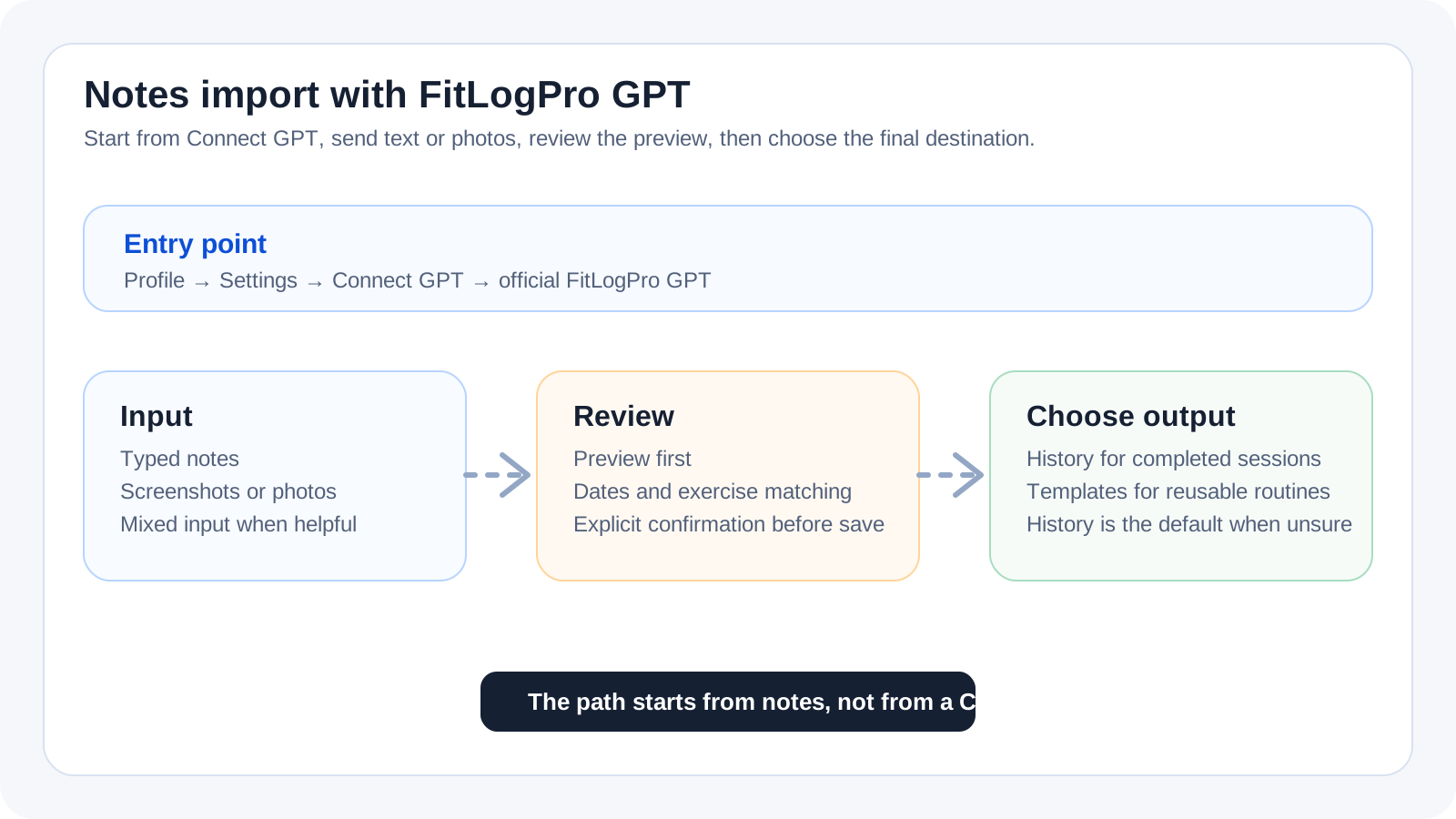
A lightweight visual map of the path described in this guide.
Help Center
GPT import da note
The right path when you start from text, photos, or mixed notes and need to decide whether the result belongs in history or templates.
Help Center
Fast answers for training, setup, recovery, and common issues.
Wiki index
Top-level categories and guides arranged like a lightweight tree so the help center is easier to scan.
On this page
6 sections
A lightweight visual map of the path described in this guide.
Open Profile > Settings.
Enter `Connect GPT`.
From there open the official GPT and start from the real outcome you need: history import or template creation.
The flow accepts text, photos, or mixed input. In practice you can paste phone notes, attach screenshots, or use both together when that makes the workout easier to interpret.
Photos of handwritten notes are supported when they stay reasonably legible, but typed text is usually easier to parse and correct.
If the answer is not here, contact support with device, platform, a clear problem description, and ideally a screenshot.
Your feedback helps us improve guides for all users.
Useful follow-up reads that complete the same flow without sending you into internal documentation.
Where the GPT connection lives, what you need before using it, and how to tell whether the setup is actually ready.
The right path for history backfill when you start from notes, screenshots, or loose workout logs that describe sessions already completed.
The right path when text or photos should become a reusable routine, not a reconstruction of past history.